

OVERVIEW
This article details instructions about how to manage reporting permissions in Lighthouse.
Reporting permissions refer to the access rights and privileges granted to individuals or groups within a system or organisation that allow them to view, generate, or interact with reports.
INSTRUCTIONS
1. Log in to your Lighthouse instance.
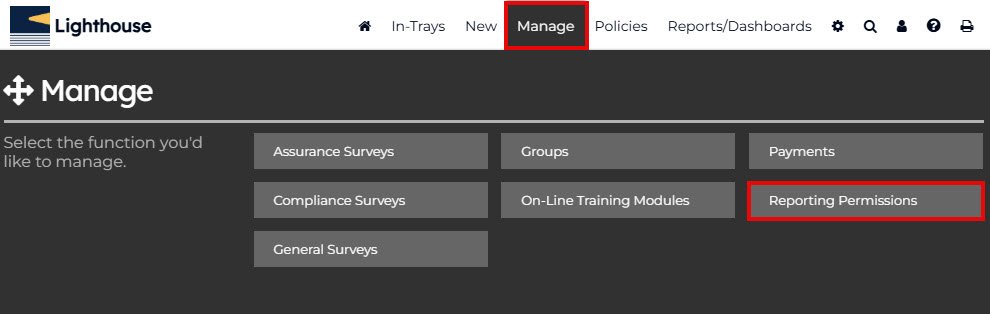
2. In the top menu bar, select Manage
3. Click on Reporting Permissions
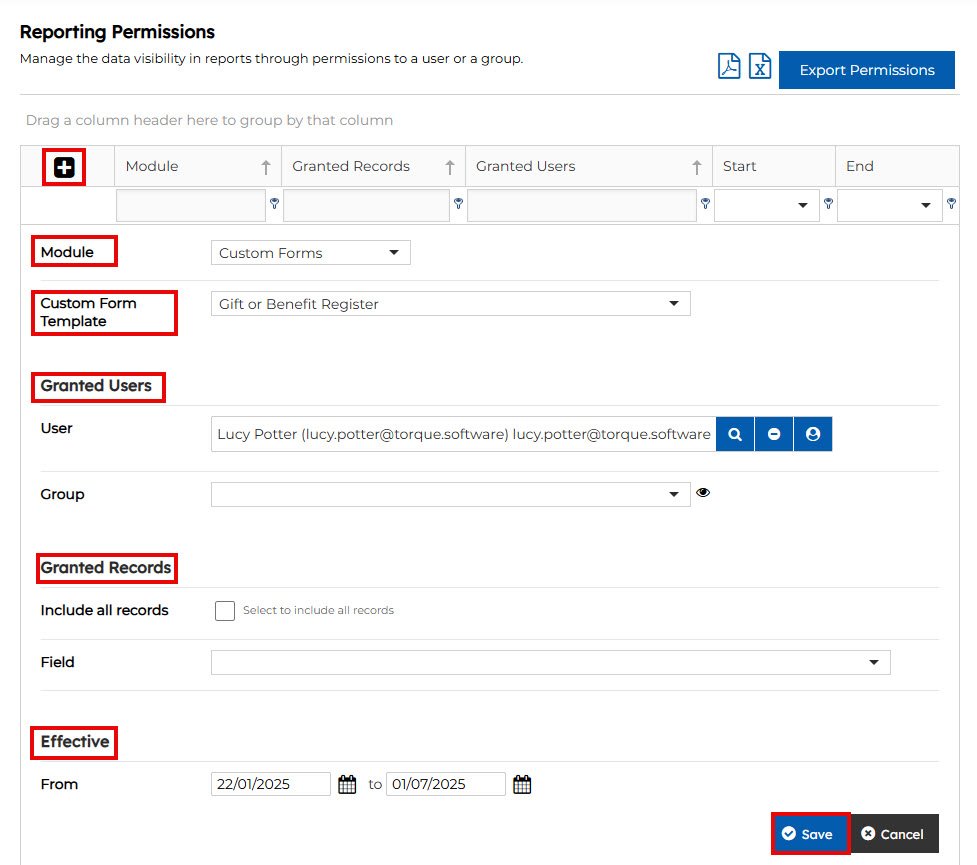
The example below is of how to manage reporting permissions for a custom form module.
1. Locate and click the plus (+) icon to begin creating a new reporting permission.
2. Select the module where the reporting permission will apply.
3. Under the Custom Form Template, pick the specific custom form you want to grant access to.
4. Choose whether you want to grant access to an individual user or a group.
-
- Use the magnifying glass to select an individual user
- Select a group from the dropdown menu that appears.
To view the users within a selected group, click on the eye icon for a detailed list.
5. Decide if the access should cover all records or be limited to specific fields within the form.
Note: This step is only applicable for Custom Form Modules.
6. Specify the time frame for how long the reporting permissions should remain effective.
Note: You can leave the date blank to keep the reporting permission active.
7. Once all options are configured, click Save to apply the new reporting permission.
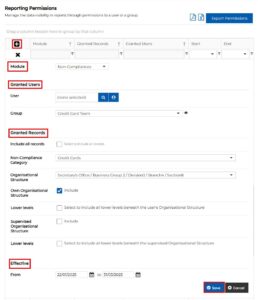
The example below is of how to manage reporting permissions for a non-compliance.
1. Locate and click the plus (+) icon to begin creating a new reporting permission.
2. Select the non-compliance module where the reporting permission will apply.
3. Choose whether you want to grant access to an individual user or a group.
-
- To view the users within a selected group, click on the eye icon for a detailed list.
4. Decide if the access should cover all records or be limited to specific sections.
5. If not all records, select the non-compliance category or the organisational structure.
6. Decide whether to grant access to users within the user’s own organisational structure and, if needed, include users from supervised organisational structures under their management.
-
- Lower levels will include all lower levels beneath the users organisational structure
7. Specify the time frame for how long the reporting permissions should remain effective.
8. Once all options are configured, click Save to apply the new reporting permission.
If you need any assistance with setting up reporting permissions, please contact us at helpdesk@lighthousegrc.software