

OVERVIEW
This article details instructions on how to share/export a report in Lighthouse
INSTRUCTIONS
1. Log in to your Lighthouse instance.
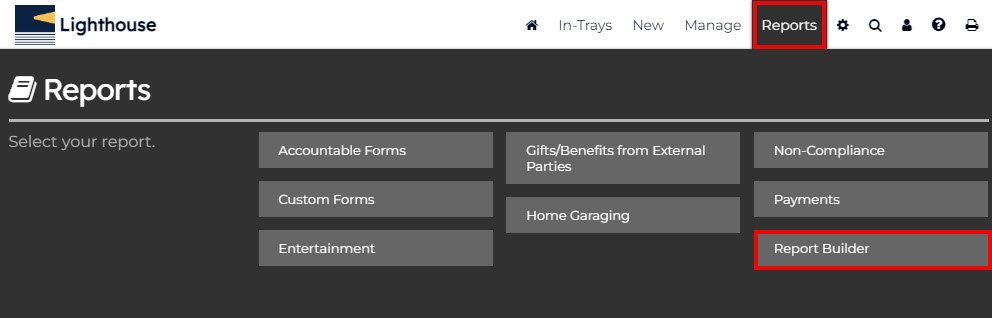
2. In the top menu bar, select ‘Reports’.
3. Then select ‘Report Builder’.
4. To share the report with someone, click the ‘Actions’ menu in the top right corner.
5. Select ‘Manage Sharing’.
6. Click the ‘+’ button on the left-hand side of the pop-up menu.
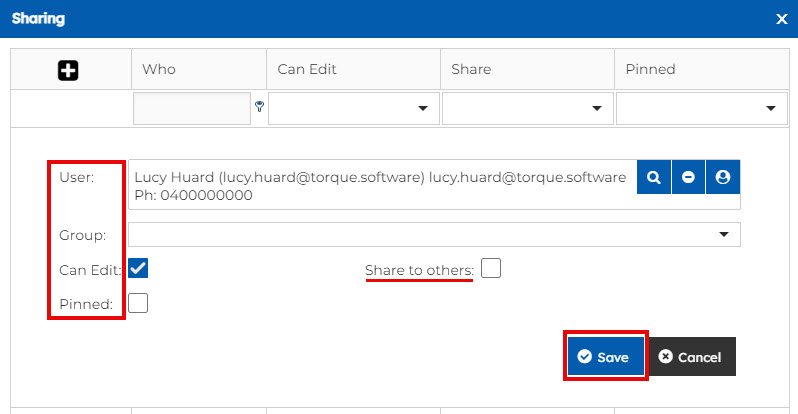
- User/Group = If you would like to share the report with a User, in the User row, press the magnifying glass and search for the name of the person you would like to share this report with. If you would like to share the report with a Group, in the Group row, search for the group you would like to share this report with.
- View/Edit = If ‘Edit’ is selected, the nominated user/group will have permission to edit the report. If ‘View’ is selected, the user/group will only have permission to view the report (no edits can be made by them).
- Share to others = If you would like the nominated user/group to have permission to share the report with others, tick this box.
- Pinned = If you would like this report to be pinned to the users/groups reporting dashboard, tick this box.
7. Click the save button to save the changes.
Note: for users to be able to view report data, they must have the appropriate reporting permissions. Permissions can be managed in the ‘Reporting Permissions’ tab in Lighthouse.
SHARING REPORT URL LINKS
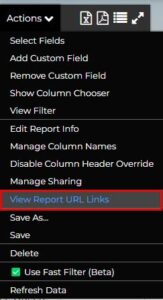
1. To share the report URL links with someone, click the ‘Actions’ menu in the top right corner.
2. Select ‘View Report URL Links’.
3. A new window will open, and you can select which URLs you would like to share
4. To share them, just copy and paste the links.
Note: for users to be able to view report data, they must have the appropriate reporting permissions. Permissions can be managed in the ‘Reporting Permissions’ tab in Lighthouse.
EXPORTING THE REPORT TO EXCEL
1. Log in to your Lighthouse instance.
2. In the top menu bar, select ‘Reports’.
3. Then select ‘Report Builder’.
4. Click the Excel icon in the top right corner.
5. In your downloads, an Excel spreadsheet will appear, open the file.
6. Save the file as required.
Note: if new data is entered/updated, it will not automatically update in the downloaded Excel file. The export only captures the data at the time it was downloaded.

EXPORTING THE REPORT AS A PDF
1. Click the PDF icon in the top right corner.
2. In your downloads, a PDF file will appear – open the file.
3. Save the file as required.
Note: if new data is entered/updated, it will not automatically update in the downloaded PDF file. The export only captures the data at the time it was downloaded.

If you have any issues navigating How to Share/Export a Report, feel free to contact us at helpdesk@lighthousegrc.software