

OVERVIEW
This article provides instructions on how to submit a hospitality application in Lighthouse.
INSTRUCTIONS
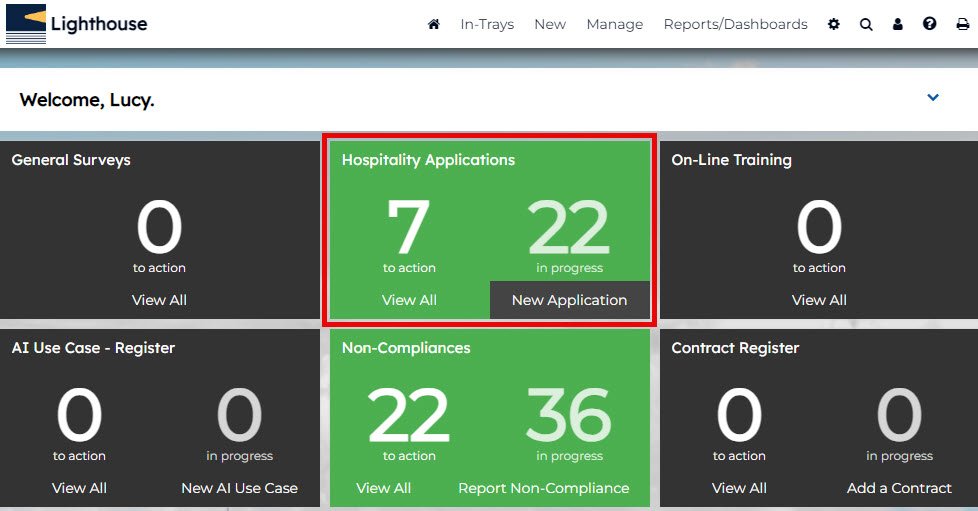
1. Log into your Lighthouse instance and on the Dashboard, locate Hospitality Applications.
2. Click “New Application”.
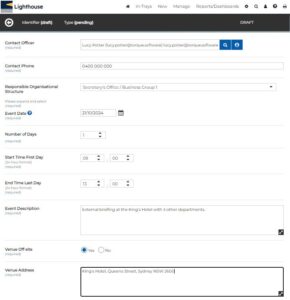
3. Fill out the information as required:
- Contact information: User will automatically populate. Enter a phone number.
- Responsible Organisational Structure: Select from the drop down list.
- Event Date: Date of event.
- Number of Days: Select how many days the event will run.
- Start Time First Day: Start time on the FIRST day of event (e.g. 9am).
- End Time Last Day: End time on LAST day of event (e.g. 3pm).
- Event Description: A description of the event.
- Venue Off-site: Select if the event is on or off-site.
- Venue Address: Put in the event location address if off-site.
4. Select all corresponding check boxes.
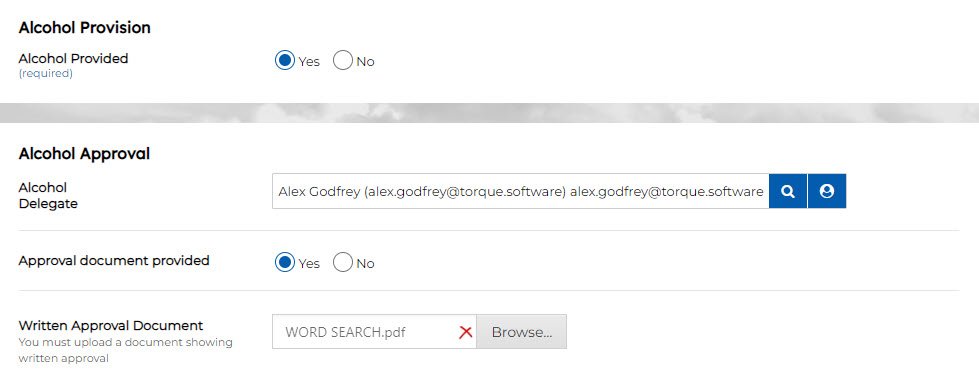
5. Select if alcohol will be provided, and if so select the Alcohol Delegate and then upload supporting documentation with written approval, by clicking on "Browse".
6. Fill in the attendees by entering the number of each in the corresponding boxes, where applicable.
- Officials (departmental employees): This includes facilitators and trainers engaged to deliver services to internal staff only at department events.
- Clients/customers: Official Hospitality spending approver is selected if clients/ customers are in attendance.
- Training provider, meeting facilitator or guest speaker:
- Family members: Official Hospitality spending approver is selected if family members are in attendance
- Service providers to department: Official Hospitality spending approver is selected if service providers to the department are in attendance
- Associates: Official Hospitality spending approver is selected if associates are in attendance.
- Other: Official Hospitality spending approver is selected if other attendees are in attendance.
7. Fill in the expenditure with the correct information, and select the payment type at the end.
8. Select the Spending Approver, and click "Submit".
If you have any issues navigating how to submit a hospitality application, feel free to contact us at helpdesk@lighthousegrc.software