

OVERVIEW
This article details instructions about how to set up API integration and make an API call to pull a Lighthouse report as raw JSON data.
INSTRUCTIONS
1. Ensure the user you are going to access the API from is in the nominated API Users group in Settings / Integrations /API Settings, under the Settings tab.
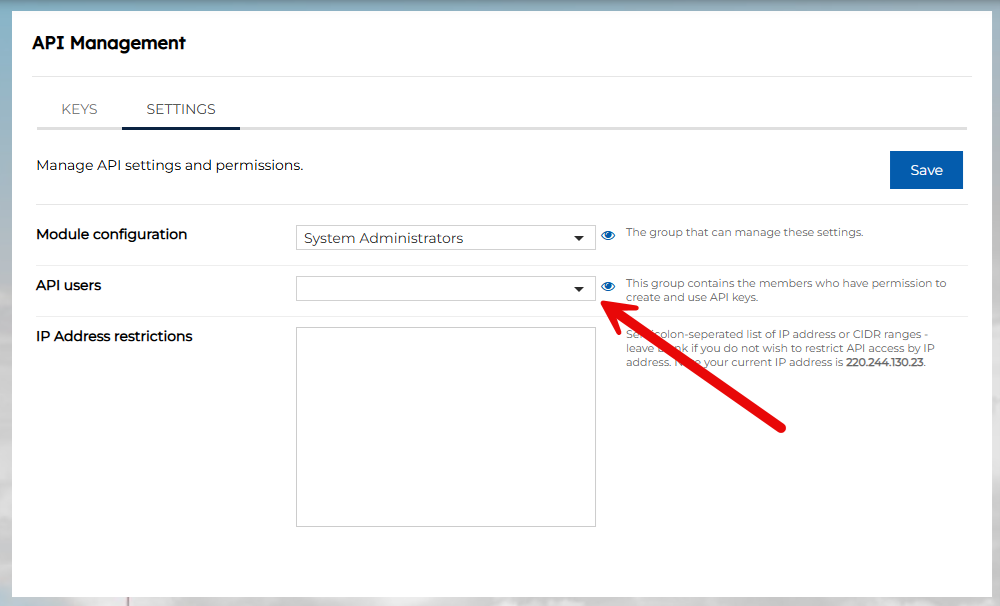
Note if the group selector is empty, as it is above, you can select a pre-existing group or create a new group and then return to this page to select it.
2. Ensuring you are in the group specified as API Users, go to your Account / My Details page and scroll down to see the API Keys section.
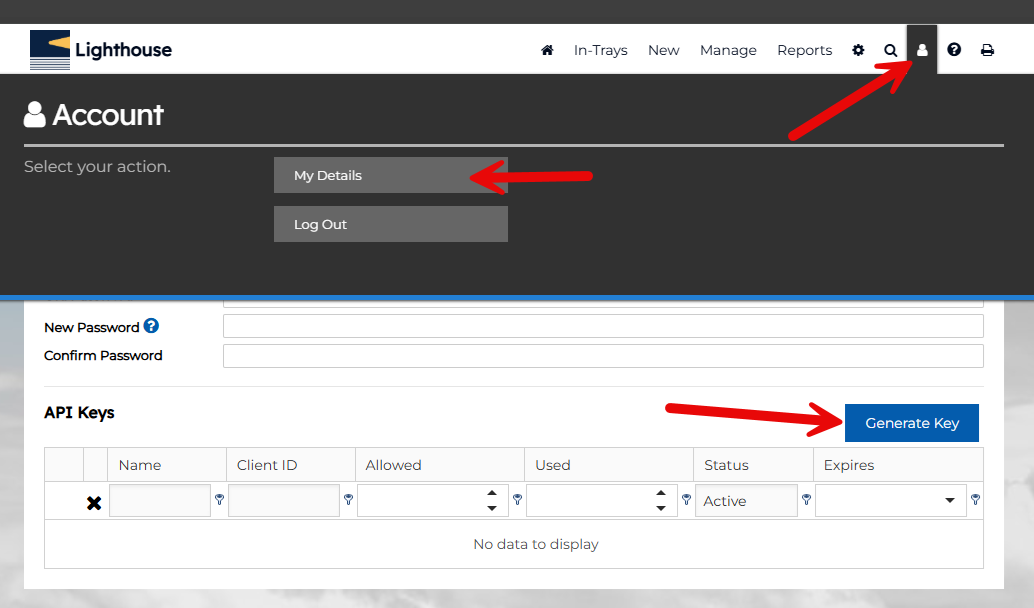
3. Click the Generate Key button, this will pop up a dialog offering the Client ID and Secret Value, and allow you to specify a name for this key, a maximum number of uses (if appropriate) and the expiry period.
Important: Make a note of the Client Id and Secret Value at this stage – this is the last time you will be able to obtain the the Secret Value.
4. Armed with your API credentials, navigate to any report created in the report builder (or create a new one), the name of this function can be different in different instances, but is normally under Reports / Report Builder and selecting the report you’d like to pull via the API.
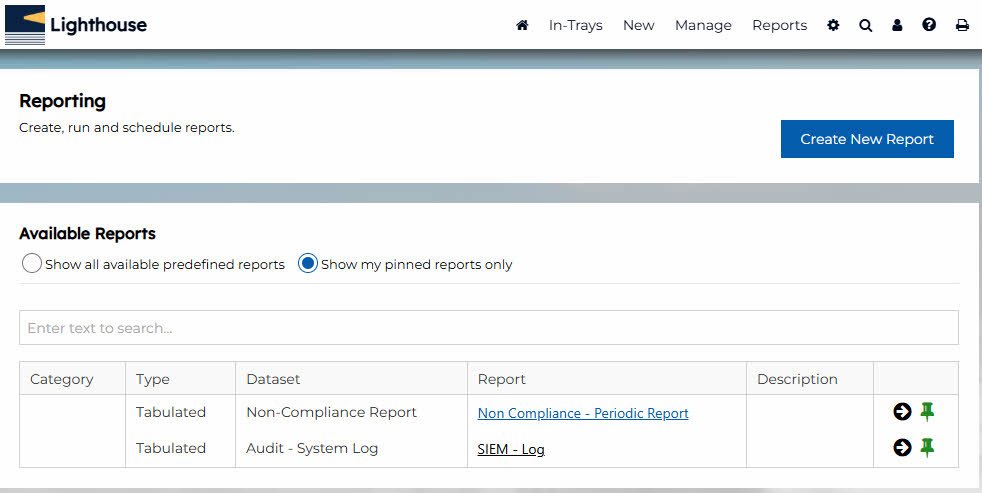
5. When viewing the report, from the Actions menu, select View Report URL Links. A popup will appear with all the different options for how this report can be accessed. Only API users will have the option JSON (API) at the bottom:
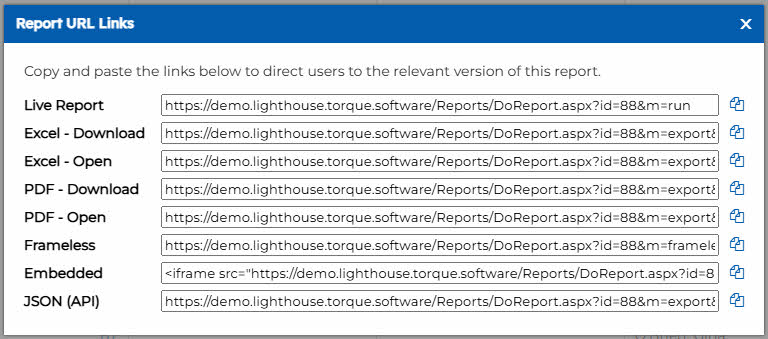
6. Click the Copy Icon or select the full URL, right click and select Copy.
7. Switch to the system that is going to make the API call, when asked for the end-point, provide the URL obtained in step 6. For authentication, the option names will change depending on your platform, but the authentication is provided by HTTP header parameters as follows:
- Key: clientid
Value: [the Client Id value obtained in step 3] - Key: secretvalue
Value: [the Secret Value obtained in step 3]
Test to ensure everything is working. If you run into issues, navigate back to your My Details page, and click the triangle next to your key to drill into the log (this can also be achieved for all users from the API Settings page):
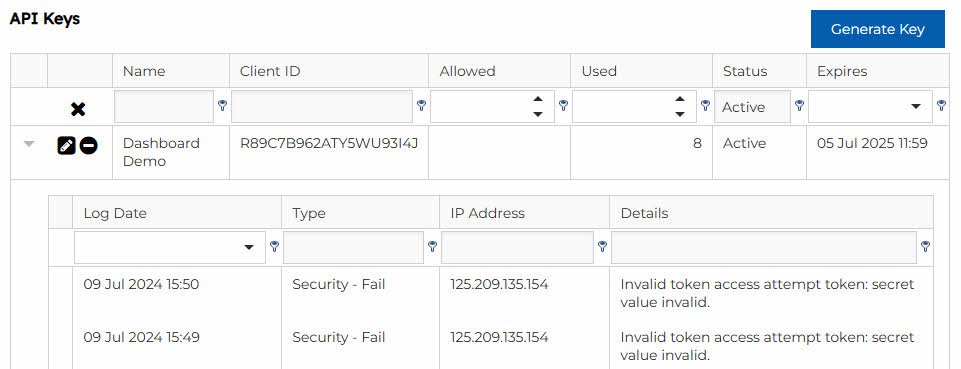
Note: in the example above the secret value that was being used was incorrect. The API log will reflect all usage: both success and failure.